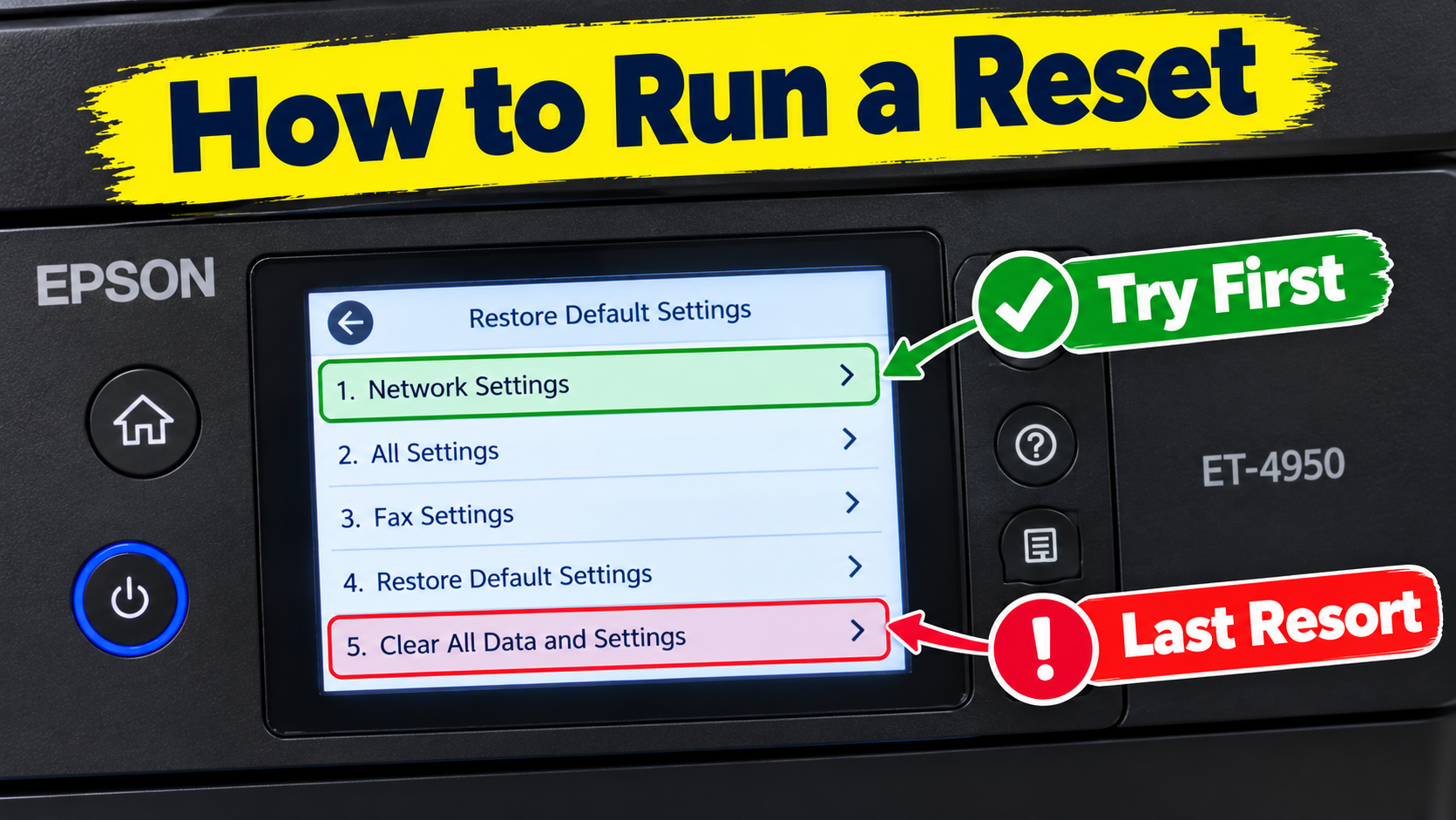
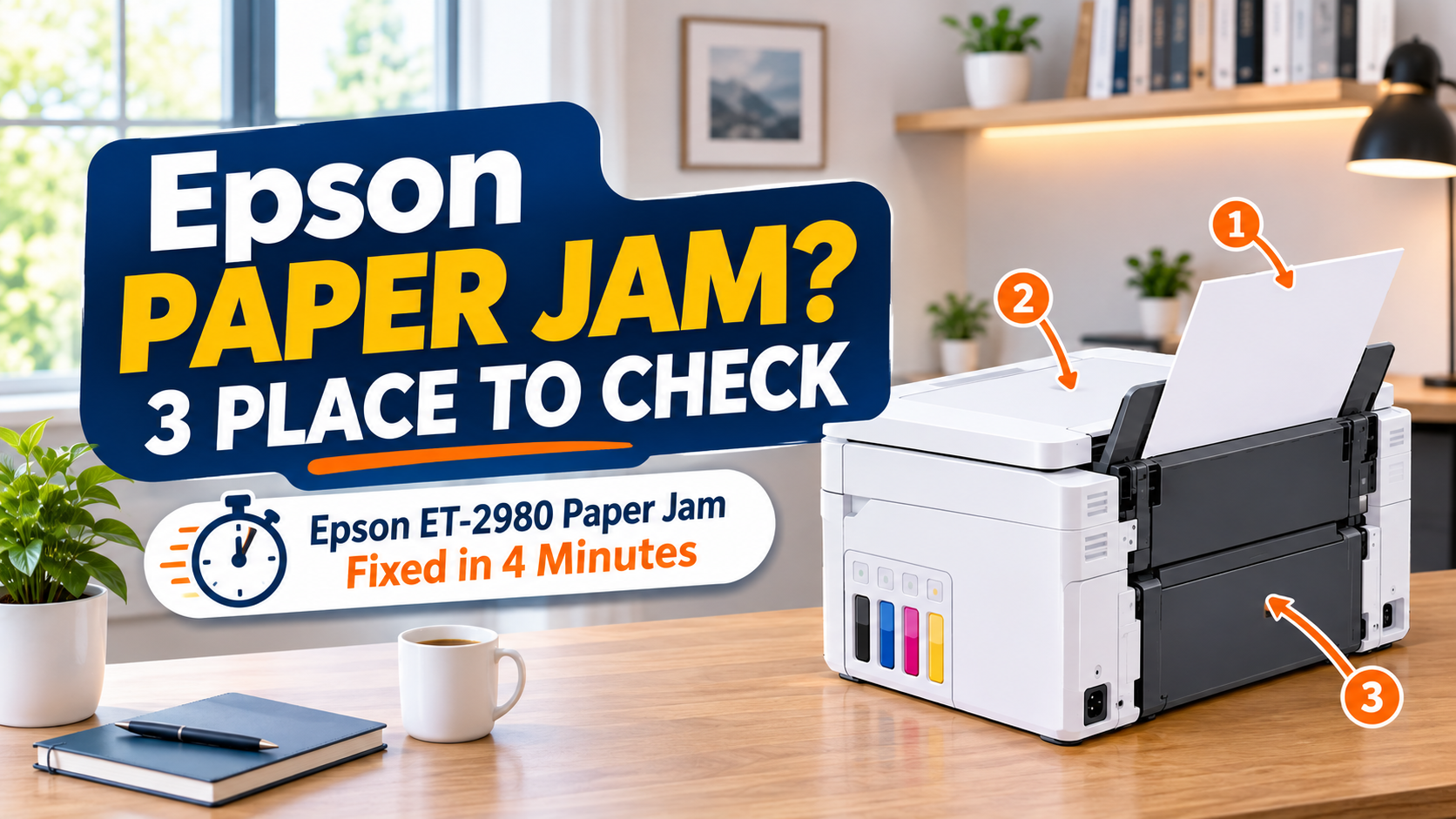
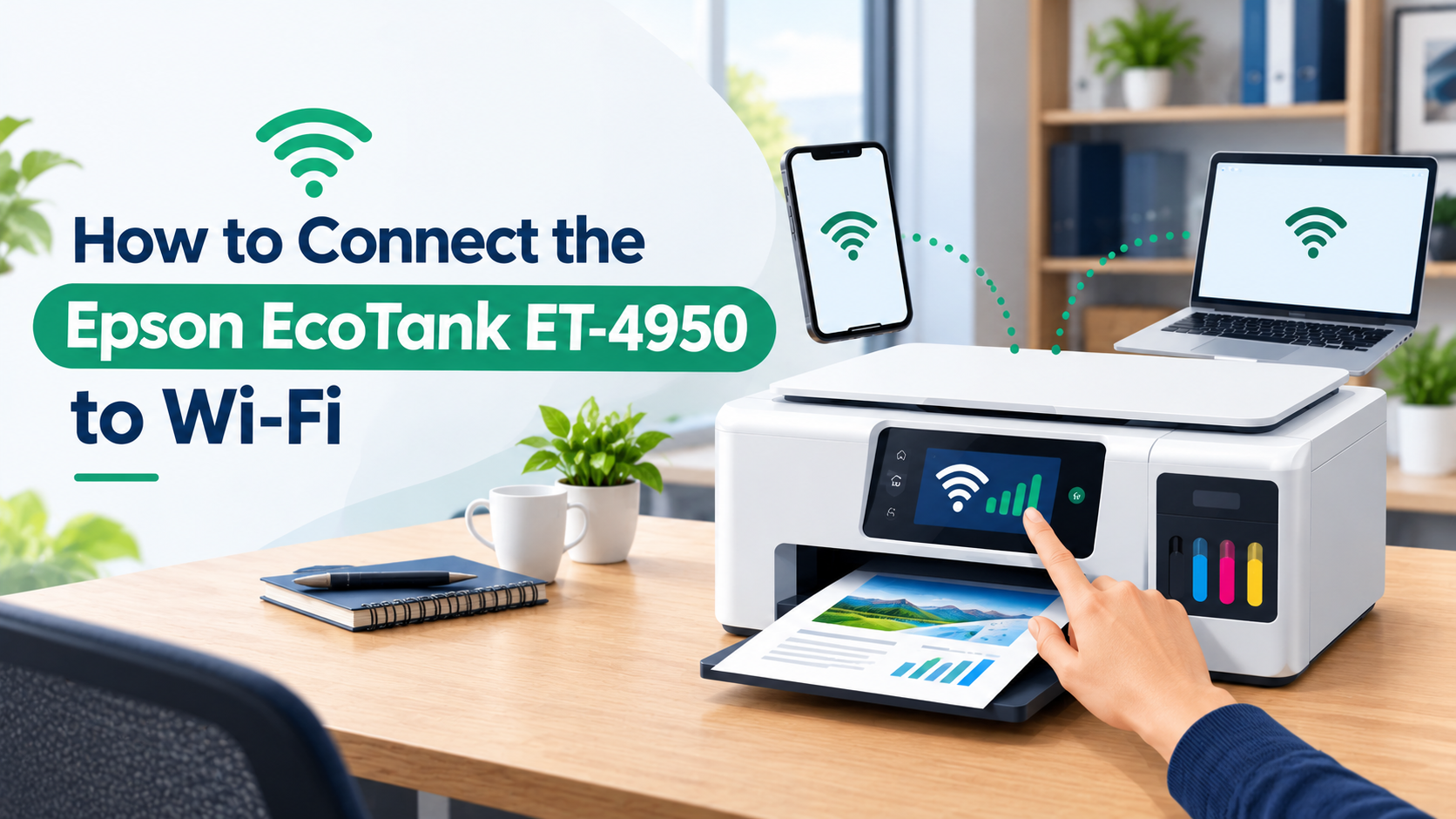
A print job that will not move or delete almost always means the print queue or the print spooler has frozen, not that your Epson printer has failed. This guide clears the stuck job on Windows and Mac, then helps you stop it from coming back.
Quick Fix
The 60-second version
- Turn the Epson printer off, wait about 30 seconds, and turn it back on.
- On your computer, open the print queue and cancel every document in it.
- If the queue will not clear, restart the Print Spooler (Windows) or reset the print queue (Mac), then try again.
- Send a one-page test print before you resend your original document.
In most cases, a spooler restart plus a printer power cycle is enough. The rest of this page is for when it is not.
Why Your Epson Print Job Gets Stuck
The print queue is a waiting line for your documents. The print spooler is the background service that runs that line: it stores each job, converts it, and feeds it to the printer one at a time. When something breaks that hand-off, the job sits in the queue and refuses to print or delete.
The usual causes:
- The spooler crashed or hung. A large file, a corrupted document, or a recent system update can freeze the service mid-job. Because the same frozen service is what handles your "cancel" click, nothing clears until you restart it.
- The printer is offline or off the network. If your Epson drops its Wi-Fi connection, or the "Use Printer Offline" setting is switched on, jobs stack up with nowhere to go.
- The wrong printer is set as default. The document may have gone to a disconnected or virtual printer, such as a PDF writer or an old device with a similar name.
- An alert on the printer. Low ink, a paper jam, an open cover, or a full maintenance box pauses the queue until the alert is cleared.
- A driver problem. An outdated or mismatched Epson driver, which is common after a major Windows or macOS update, can stop the spooler from formatting the job.
- A shared office printer. On a network printer, another person's stuck job can block yours.
You do not have to diagnose which one applies. The steps below are ordered so the quickest and safest fixes come first.
Before You Start: Three Quick Checks
Spend 30 seconds here first:
- Read the printer's screen or lights. Clear any paper jam, close any open cover, and replace ink if the panel says it is empty. The queue often starts moving on its own once the alert is gone.
- Confirm the connection. On Wi-Fi models, check that the printer shows a network or Wi-Fi icon. On USB, reseat the cable and plug it straight into the computer instead of a hub.
- Check the destination. In the print dialog, make sure your Epson model is selected, not "Microsoft Print to PDF" or an older printer.
How to Clear a Stuck Epson Print Job on Windows 11 and Windows 10
Step 1: Cancel the jobs in the queue
- Open Settings, then go to Bluetooth & devices > Printers & scanners. On Windows 10, go to Devices > Printers & scanners.
- Select your Epson printer and choose Open print queue.
- Right-click each job and choose Cancel. To clear everything, open the Printer menu and choose Cancel All Documents.
- Wait about a minute. If the jobs disappear, print a test page and you are finished.
Step 2: Turn off "Use Printer Offline"
Still in the print queue window, open the Printer menu. If Use Printer Offline has a check mark, click it to switch it off. Make sure Pause Printing is not selected either.
Step 3: Restart the Print Spooler service
If the jobs will not cancel, the spooler is stuck.
- Press Windows + R, type services.msc, and press Enter.
- Find Print Spooler in the list.
- Right-click it and choose Restart. If Restart is grayed out, choose Stop, wait a few seconds, then choose Start.
- Return to the print queue. The stuck jobs are usually gone.
Step 4: Clear the spooler folder
When a corrupted job survives a spooler restart, delete it by hand. You need administrator rights.
- Open services.msc again and Stop the Print Spooler service. Leave the window open.
- Open File Explorer and go to C:\Windows\System32\spool\PRINTERS.
- Delete everything inside that folder. Keep the PRINTERS folder itself, remove only its contents.
- Go back to Services and Start the Print Spooler.
- Power cycle the Epson printer, then send a test page.
Step 5: Run the Windows printer troubleshooter
On current builds of Windows 11, printer diagnostics run through the Get Help app. Open Get Help from the Start menu, type printer, and follow the guided troubleshooter. It can reset the spooler, clear the queue, and check the driver for you. On Windows 10, go to Settings > Update & Security > Troubleshoot > Additional troubleshooters > Printer.
Step 6: Update or reinstall the Epson driver
If the queue keeps jamming, the driver is the likely cause.
- In Printers & scanners, select the Epson printer and choose Remove device.
- Download the current driver for your exact model from the Epson support site, or install Epson Software Updater and let it pull the latest version.
- Run the installer, add the printer back, and set it as your default.
How to Clear a Stuck Epson Print Job on Mac
Step 1: Delete the jobs in the queue
- Open the Apple menu > System Settings > Printers & Scanners. On macOS 12 and earlier, open System Preferences > Printers & Scanners.
- Click your Epson printer, then click Open Print Queue.
- Select each job and click the X or delete icon.
- If a job shows as On Hold or Paused, click Resume.
Step 2: Restart the printer and the Mac
Close the queue window. Turn the Epson off for about 30 seconds, then on. Restart the Mac from the Apple menu. This resets the connection on both sides and releases most held jobs.
Step 3: Reset the printing system
If jobs still will not delete, reset the printing system. This removes every printer and all of their queues, so plan to re-add the Epson afterward.
- In Printers & Scanners, right-click or Control-click anywhere in the printer list.
- Choose Reset printing system and confirm.
- Restart the Mac.
- Click Add Printer, select your Epson model, and let macOS install the driver. If the model is not listed, install its software from the Epson support site first.
Step 4: Update the Epson driver for macOS
Open Epson Software Updater, or download the macOS driver for your model from Epson's support site. An outdated driver after a macOS upgrade often shows up as jobs that queue but never print.
Fixes on the Printer Itself
The queue runs on your computer, but the printer can be the thing holding it up.
- Do a full power cycle. Turn the printer off, unplug it from the wall for 60 seconds, plug it back in, and power on. This clears cached errors in the printer's memory that a normal restart leaves behind.
- Clear every alert. Open and close the front cover, check the paper path for torn scraps, and reseat the ink cartridges or ink pack. The queue will not advance while the printer reports a problem.
- Reconnect Wi-Fi. From the control panel, run the wireless setup or connection check again. If your router was recently changed or restarted, the printer may be on the wrong network.
- Update the firmware. Use the Firmware Update option in the printer's setup or maintenance menu, or run Epson Software Updater from a connected computer.
- Test the hardware. Print a status or nozzle check sheet directly from the printer's menu. If that prints but computer jobs do not, the issue is on the computer. If it also fails, focus on the printer and its connection.