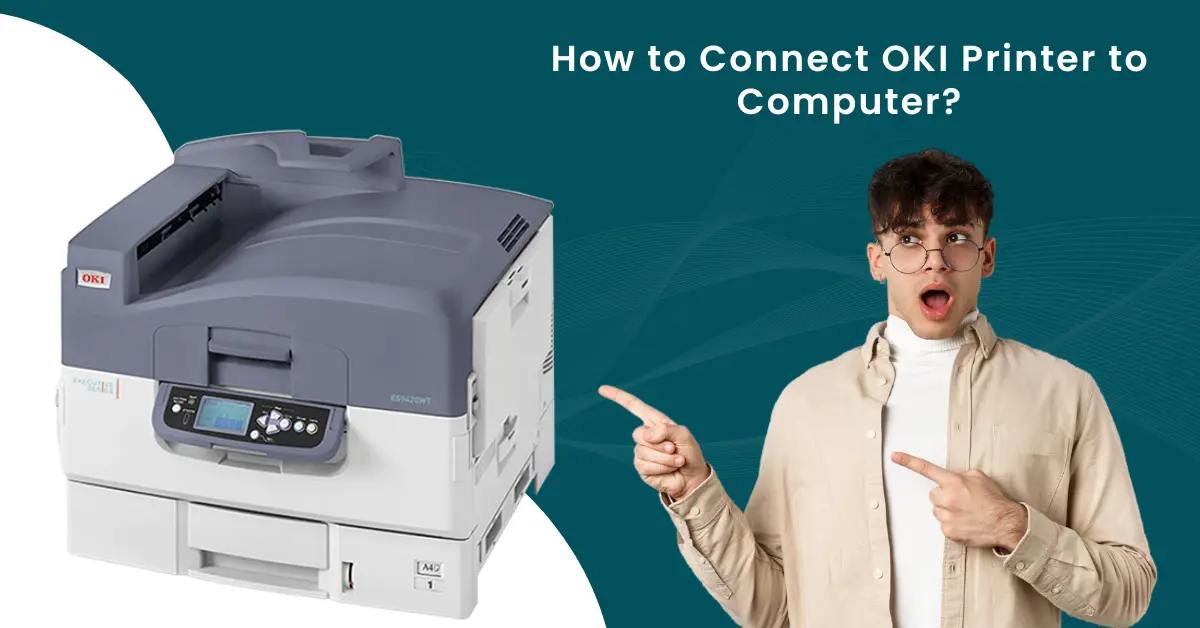
OKI Printer — Complete Brand & User Guide
What Is an OKI Printer and Why Do Users Choose It?
OKI printers are LED-based printing devices made by Oki Electric Industry Co., Ltd., a Japanese technology company founded in 1881 and operating in over 120 countries. Unlike traditional laser printers that use a spinning mirror to project a beam across the drum, OKI uses a fixed array of light-emitting diodes that flash an entire line at once. That difference matters in practice: fewer moving parts, faster output, and a significantly smaller device footprint.
If you've landed here because your OKI printer isn't behaving the way it should, you're in the right place. Printer Tales covers every common OKI issue from driver conflicts and paper jams to offline errors and setup headaches with step-by-step guidance that actually works.
The Technology Behind OKI Printers
LED vs. Laser: Why It's Not the Same Thing
Most people assume OKI printers work like standard laser printers. They don't, and the distinction is worth understanding because it directly affects how your printer performs and how you maintain it.
A conventional laser printer steers a single laser beam left to right across a drum using rotating mirrors. Every component in that path, the laser diode, the beam splitter, the polygon mirror must stay perfectly aligned, and any mechanical wear shifts that alignment over time.
OKI's approach replaces that entire assembly with a stationary bar of LEDs. There are no mirrors, no rotating parts, and no alignment to drift. The LED bar flashes each full line of the image all at once as the drum moves past it.
The real-world results:
- Compact size: With no beam-steering mechanism needed, OKI printers are among the smallest color printers in their class. The C650, for example, is recognized as the world's smallest high-performance A4 color printer, yet delivers the output quality of a full workgroup device.
- Speed consistency: Because color and mono print jobs both go through the same single-pass system, color printing doesn't slow down the way it does on older laser designs that required multiple drum passes.
- Dot-level precision: OKI's LED technology can vary the intensity of each individual dot, allowing finer gradations of color and sharper fine text than a single-exposure laser beam typically delivers.
- Reliability: Fewer moving components means fewer failure points. OKI is so confident in this that the LED printhead on their page printers has historically carried a five-year warranty, the longest in that segment.
OKI began developing LED printing technology in 1965, launched the world's first commercial LED page printer in 1983, and introduced Europe's first LED printers, the OL400 and OL800, in 1989. The 1998 OKIPAGE 8c was their first digital color printer, using tandem printing that ran at speeds twice as fast as competitors at the time. That heritage of incremental engineering still shows in how OKI builds printers today.
OKI Printer Product Lines Explained
OKI organizes its printers around use case rather than just specs. Knowing which line covers your needs saves time when searching for drivers, toner, or support.
Office Color Printers (C-Series)
These are the workhorses. The C-series covers A4 and A3 color printing for business environments, ranging from the compact C650 to larger departmental units. The C650's "Space Saving Technology" allows front-access only, meaning it can fit inside a kiosk, against a wall, or in a tight warehouse station where side clearance isn't available. Media support runs from A6 card stock up to banners 1.32 meters in length, and up to 360gsm heavier than what most office printers handle.
Multifunction Printers (MC-Series)
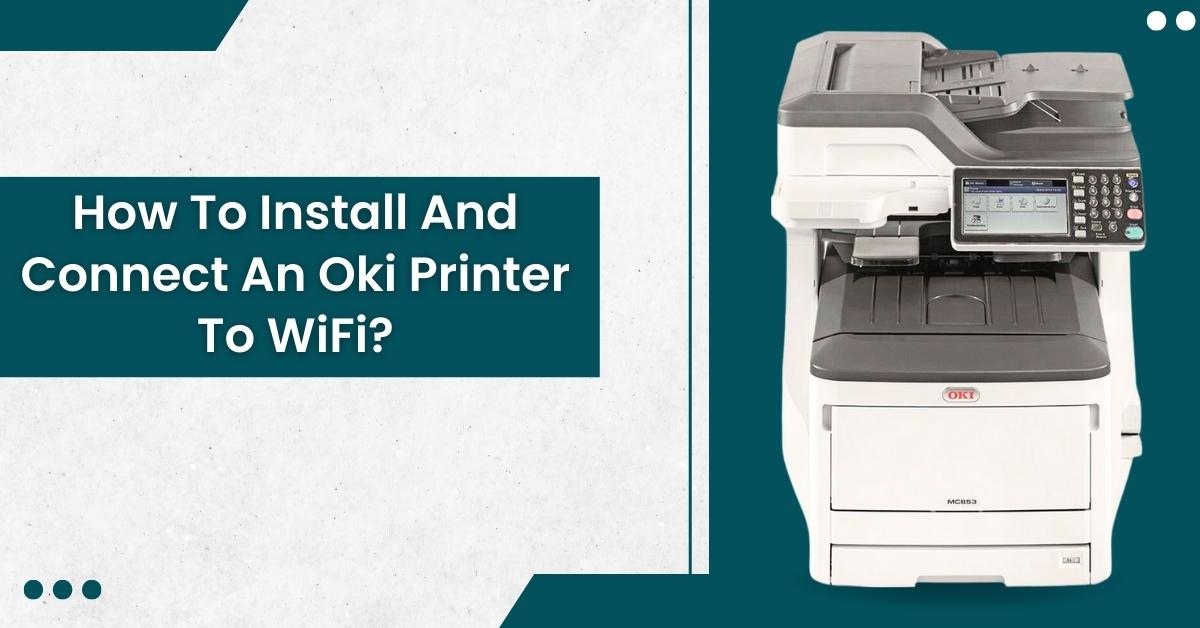
The MC-series adds scan, copy, and fax to OKI's LED print engine. Models like the MC573dn include a 7-inch color touchscreen, IPSec security compliance, Private Print encryption, and optional card-release authentication for sensitive environments. Gigabit Ethernet and an optional wireless LAN module cover connectivity needs for larger offices. AirPrint and Google Cloud Print compatibility handles mobile printing without additional software.
Mono Printers (B-Series)
For environments where color isn't needed but output volume is high, the B-series mono units print at speeds up to 45 ppm. These are cost-effective for legal offices, logistics, government facilities, and any setting where thousands of pages per month matter more than color capability.
Graphic Arts & White Toner Printers (Pro-Series)
This is where OKI does something most printer manufacturers don't: they offer a CMYW (Cyan, Magenta, Yellow, White) toner system rather than the standard CMYK. Models like the Pro8432WT A3 white toner printer can lay down opaque white as a base layer, then print full-color designs over it. This matters specifically for:
- Garment decoration: Printing transfers for dark-colored t-shirts, where without a white underbase, the fabric color washes out the design entirely.
- Signage on colored or transparent film: White toner creates a solid background on clear cling material.
- Hard surface transfers: Ceramic mugs, wood, metal, and phone cases decorated via heat-transfer processes.
The Pro8432WT prints at 35 ppm for A4 and 20 ppm for A3, uses 1200 x 600 dpi resolution with ProQ multi-level output, and ships with two additional high-capacity white toner cartridges (4,500 pages each) from day one. CMY cartridges yield around 10,000 pages.
The Pro9541 and Pro9542 extend this further with a fifth spot color option, either white or clear gloss, for effects not achievable with standard four-color printing.
Label Printers (Pro1050 / PLAVI ES9542R)
For businesses printing product labels in-house, the Pro1050 uses OKI's CMYK+1 system, allowing a fifth color (including white) for label designs that need to stand out on any substrate. The PLAVI ES9542R adds built-in CMYK+White capability for high-volume label runs, and produces waterproof, alcohol-resistant, and grease-proof labels useful in food production, chemical, and pharmaceutical environments where BS 5609 compliance matters.
Who Uses OKI Printers (and What They Actually Print)
Understanding what sectors rely on OKI helps you calibrate whether your model is being used within its designed parameters or being pushed in ways that cause unnecessary strain.
Retail: POS signage, shelf labels, window stickers, promotional banners, price changes. The flat paper path handles banner-length output without curling, and on-demand in-house printing means retailers aren't waiting on an external print house every time conditions change.
Hospitality and events: Personalized place cards, tablecloths, waterproof menus, door hangers, floor decals. OKI's toner fuses directly onto substrates rather than soaking in, which means prints don't smear when surfaces get wet relevant in any venue environment.
Healthcare: Patient wristband printing, ID labels, and documentation. OKI label printers with appropriate substrates meet the durability demands of clinical environments.
Graphic arts and print shops: Custom apparel transfers, promotional merchandise, short-run packaging proofs. The white toner Pro-series has found a significant following in small and mid-sized print businesses that need flexibility without a full production press investment.
Education and corporate offices: High-volume document printing, scanning, and copying via MFP models. The MC-series handles these needs while fitting on standard office desks.
OKI Printer Setup: What New Users Should Know Before They Start
First-time OKI setup catches more people off-guard than it probably should. A few things that aren't obvious from the box:
USB mode is disabled by default on many models. On OKI MFP units, USB connection is set to IPP (Internet Printing Protocol) mode from the factory. If you're connecting via USB cable and your computer doesn't detect the printer, you'll need to change the USB Assignment setting from IPP to Legacy under Admin Setup > Manage Unit > Local Interface > USB Menu before the cable connection will register.
The Wi-Fi Direct / AP Mode trap: OKI printers have two wireless modes. Wi-Fi Direct (sometimes labeled AP Mode) creates the printer's own wireless network and your devices connect directly to it. Wi-Fi Infrastructure mode connects the printer to your home or office router like any other device. If you set up Wi-Fi Direct and then try to print from a computer that's on your main network, nothing will happen — the printer and computer are on separate networks. Most office users want Infrastructure mode; check the printer's network configuration page to confirm which mode is active.
2.4 GHz vs 5 GHz: Most OKI wireless printers connect on the 2.4 GHz band. If your router broadcasts both bands under the same name (SSID), the printer may have trouble or default to a band it doesn't support. During initial setup, temporarily using a 2.4 GHz-only network or separating the bands in your router settings removes a common source of confusion.
Driver source matters: OKI's official driver pages at oki.com are the only reliable source for current drivers. Third-party "driver updater" tools frequently bundle unwanted software and occasionally install mismatched drivers that create new problems.
OKI Toner and Consumables: What to Know
OKI uses a separate toner cartridge and drum (image drum) system. The toner cartridge holds the dry powder; the drum is the photosensitive cylinder it fuses onto. These are replaced separately, which can lower long-term costs compared to printers where toner and drum are a combined unit, you're not replacing the drum every time you change toner.
Genuine vs. compatible toner: OKI uses polymer toner formulations that are optimized for their specific drum and fusing temperatures. Users who've tested compatible toner cartridges in OKI color printers — particularly in production environments frequently report acceptable results on plain paper but inconsistent adhesion on specialty substrates like labels, transfer film, or heavy card stock. For white toner models especially, compatible cartridges often can't match the opacity OKI's genuine white toner achieves.
Drum lifespan: OKI drums are rated for tens of thousands of pages depending on the model. The printer tracks drum life separately from toner, and will alert you when the drum is approaching end of life. Unlike toner-empty alerts, a drum-low warning doesn't mean output quality drops immediately - the printer can often continue for a meaningful number of pages after the first alert.
Toner capacity: Standard-yield and high-yield options exist for most models. For businesses printing hundreds of pages weekly, the cost-per-page difference between standard and high-yield cartridges adds up significantly over a year. High-yield toner in an OKI C650 produces roughly 6,000 pages per cartridge for color versus 1,500 for standard yield.
Common OKI Printer Issues and Where to Find Help
OKI printers are reliable, but they're not immune to the problems that affect any networked office device. The most common issues Printer Tales sees:
Driver conflicts after Windows updates: A Windows feature or security update can break the communication between a correctly installed driver and the printer. This usually manifests as the printer showing offline in the print queue even though it's powered on and connected. Reinstalling the driver after confirming the printer's network address hasn't changed resolves this in most cases.
Paper jams: OKI's flat paper path handles heavy media better than most printers, but paper jams still occur when media weight or size doesn't match the tray settings, when the paper tray is overfilled, or when feed rollers accumulate paper dust over time. The display panel on OKI printers specifies where in the paper path the jam occurred — duplex unit, main cassette, MP tray — which tells you exactly where to look rather than searching the whole machine.
Error codes 140, 141, 142: These relate to fuser temperature conditions. The fuser unit applies heat to bond toner to paper, and codes in this range typically indicate the fuser is overheating (high-volume sessions) or hasn't reached operating temperature. A power cycle that includes a full disconnect from the wall socket for at least a minute resets the thermal management in most cases.
Printer going offline: Almost always a network or connectivity issue rather than a hardware fault. Check the printer's IP address hasn't changed (DHCP lease renewal can assign a new address), verify the printer is on the correct Wi-Fi network, and confirm the driver on the computer still points to the right address.
OKI's Warranty and Support Coverage
OKI printers include a standard one-year manufacturer's warranty. Registering your device on OKI's website within 30 days of purchase extends that to three years at no additional cost, and on most color, mono, and multifunction models, the extended warranty includes on-site service rather than requiring you to ship the printer.
For dot matrix models and specialty graphic arts printers, warranty terms vary by region and model, so confirming specifics on OKI's regional support pages is worth doing at purchase.
OKI and the Future: What's Changing
In February 2025, OKI joined ETRIA, a joint venture formed by Ricoh and Toshiba Tec to consolidate multifunction printer development and manufacturing. OKI's contribution to that partnership is specifically their LED printhead technology, which the joint venture intends to use to broaden the range of devices it can produce. For end users, this signals that OKI's core LED technology is considered valuable enough by the broader industry to serve as the basis for a new generation of shared-platform office equipment.
The global laser and LED printer market is projected to reach USD 17.85 billion by 2032, growing at 3.6% annually. OKI's position within that market is anchored by sectors such as specialty printing, graphic arts, and label production, where their technology genuinely has fewer direct competitors than it does in the standard office printer category.
Need Help with Your OKI Printer Right Now?
Every issue category has its own dedicated fix guide on Printer Tales. Whether your OKI is showing an error code you don't recognize, stuck in a paper jam, refusing to connect to Wi-Fi, or won't respond after a Windows update, the guides above were written from direct hands-on experience with these machines, not copied from the manual.