Epson ET-4950 Reset: Which One to Choose
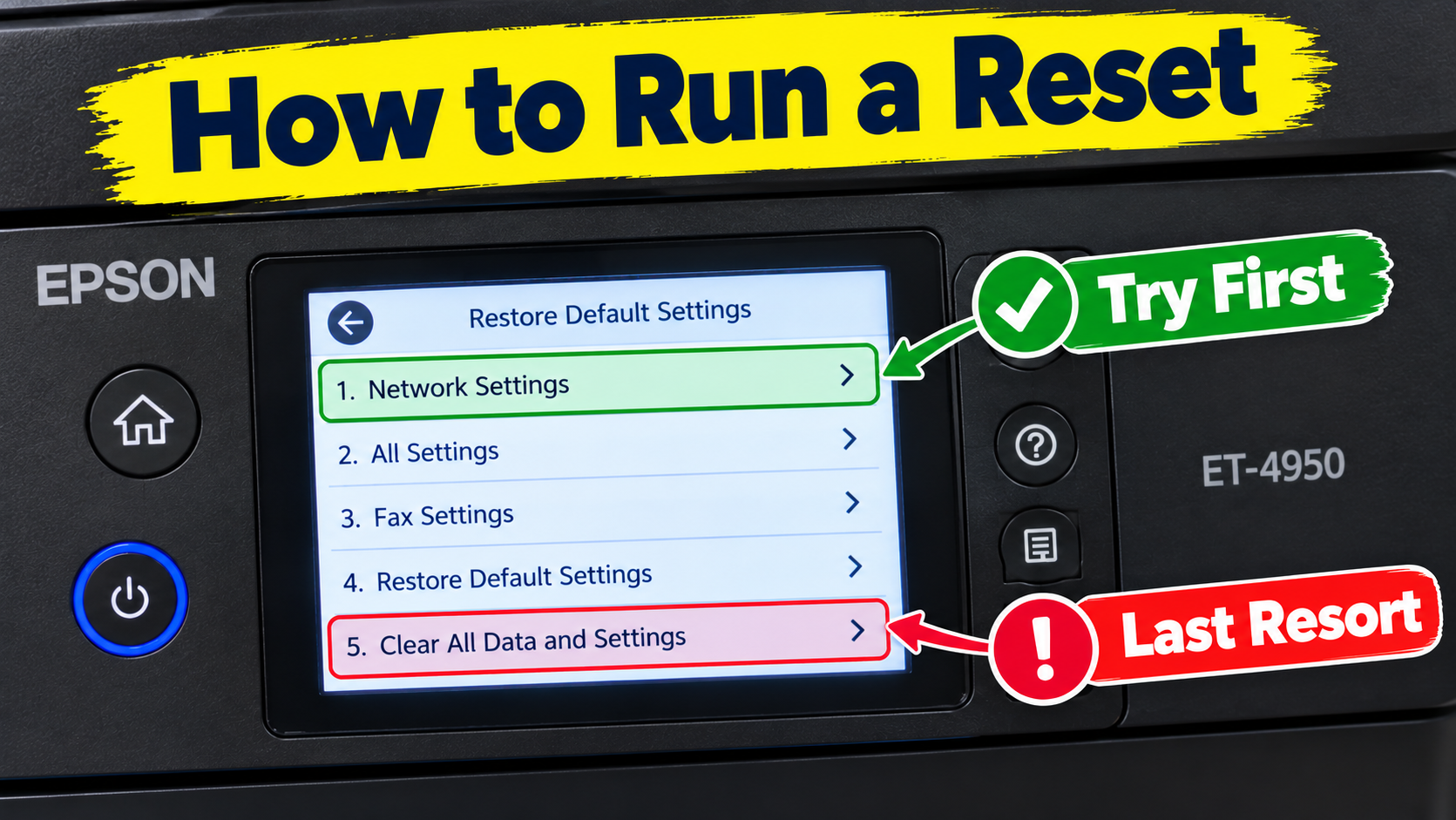
How to Reset the Epson EcoTank ET-4950 (and Which Reset to Choose)
Your ET-4950 is acting up: Wi-Fi won’t connect after a new router, copies keep coming out with odd settings, or you’re about to sell it and want your details gone. A reset can fix all of these, but the ET-4950 has five different resets, and only one of them wipes everything.
The steps take a minute. Picking the right reset is the part that matters, so start with the table below.
Which reset do you need?
Quick Answer
Press Home, then tap Settings, then Restore Default Settings. Choose the reset you need and tap Yes to confirm.
Only Clear All Data and Settings is a full factory reset. The other four reset one area and leave everything else alone, which is usually all a problem needs.
Important Note: Clear All Data and Settings deletes stored information, including fax contacts saved on the printer. Back up first (see below).
Not sure which one you need? Tell Pete AI by Printer Tales what the printer is doing and it’ll point you to the right reset: printertales.com/pete-ai
Try a Restart First
Turn the printer off with its power button, wait a few seconds, and turn it back on. A lot of problems that feel like they need a reset clear with a simple restart, and it costs you nothing.
Note Worthy: I always restart before I reset anything. If a restart fixes it, I haven’t lost a single setting, and if it doesn’t, I’ve only lost a minute.
Back Up Before You Reset
Epson’s ET-4950 manual recommends keeping a printout of your fax and network settings, because a breakdown or a repair can erase them. The same goes before a reset.
- Print the network settings: tap Settings, then General Settings, then Network Settings, then Network Status, then Print Status Sheet.
- Print the fax settings: tap Fax, then the menu icon, then Fax Report, then Fax Settings List, then Print.
- Using Clear All Data and Settings? Write down any fax numbers you’ve saved on the printer. That option deletes them.
Note Worthy: I keep the network status sheet in the printer’s paper box. When something goes wrong months later, the Wi-Fi name and IP address the printer was using are right there.
How to Run a Reset
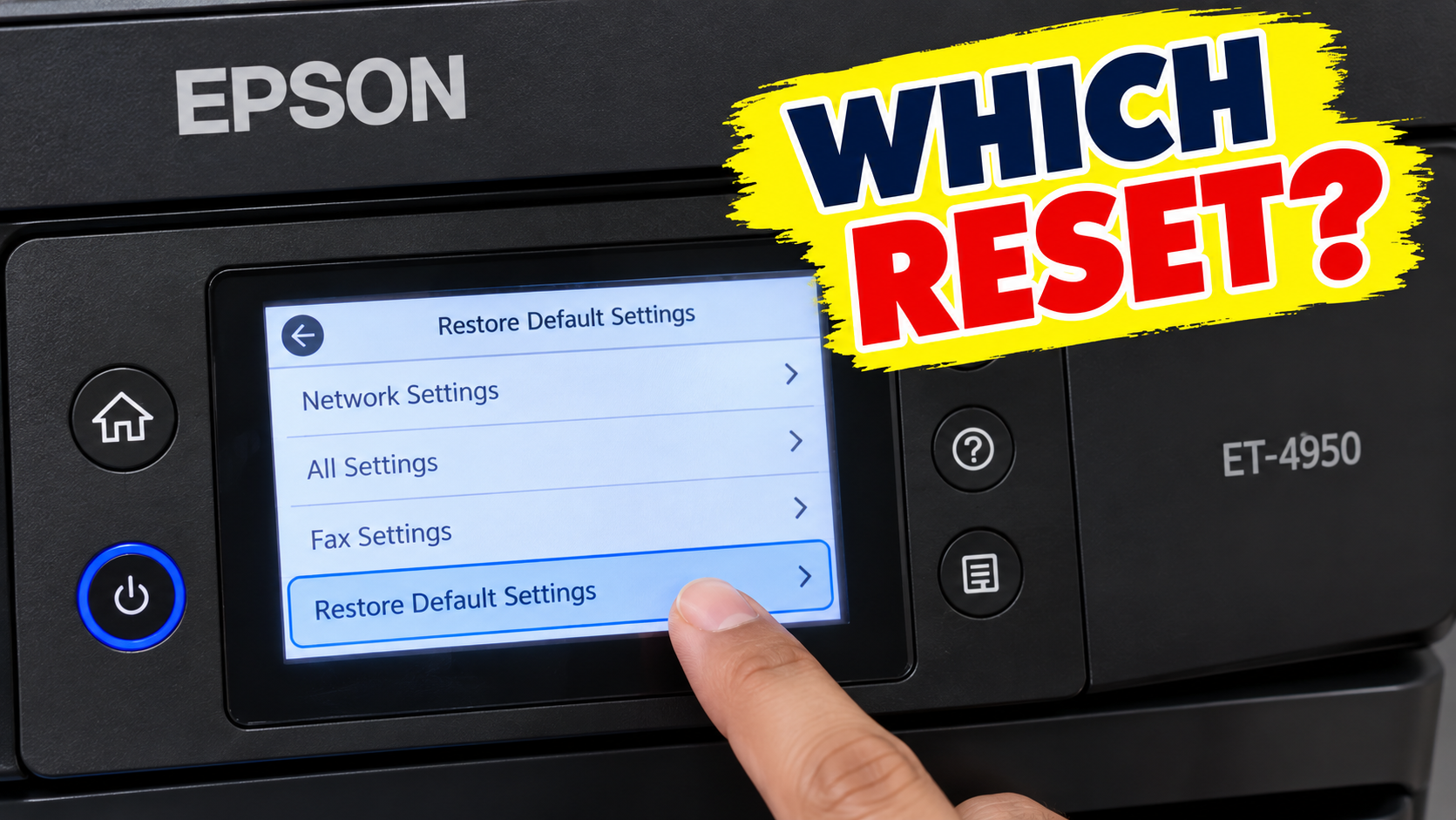
- Press the Home button.
- Tap Settings, then Restore Default Settings.
- Tap the option you need:
- Network Settings, Copy Settings, Scan Settings or Fax Settings for a single area.
- Clear All Data and Settings for a full factory reset.
- A confirmation screen appears. Tap Yes to go ahead, or No to back out.
Tip: The fax reset is specific to this model. EcoTanks without fax, like the ET-2980, don’t have it.
After the Reset
What you redo depends on which reset you chose.
- After a Network Settings reset: the printer drops off your Wi-Fi. Reconnect it from the network icon on the Home screen with the Wi-Fi Setup Wizard. Our ET-4950 Wi-Fi guide covers every method.
- After a Fax Settings reset: go back through fax setup. The line type and the number of rings before answering are the first two settings Epson’s fax setup covers.
- After Clear All Data and Settings: the printer is back to factory defaults, so set up the language, Wi-Fi, date and time, and fax again.
Important Note: Epson’s manual says changing the country or region setting returns the fax settings to their defaults. If you change it during setup, do it before you redo the fax settings, not after.
A full reset doesn’t remove the printer from your computer. If your computer can’t find it after you reconnect the Wi-Fi, reinstall the Epson software and choose the wireless connection. That’s Epson’s standard fix when the network connection changes.
Note Worthy: After a network reset, I reconnect the printer to Wi-Fi before I touch the computer. Real-life example: a new router goes in on Saturday, the printer joins it, and only then does the laptop need the Epson software reinstalled. Doing it in that order saves going round in circles.
The Ink-Level Reset Is Something Else
If the screen asks you to reset ink levels, that’s not a factory reset, and it doesn’t touch your settings. It appears when the printer thinks a tank is low.
Epson’s steps for the ET-4950:
- Refill the tanks the screen names (or all of them) all the way to the top.
- Select the colors you refilled on the screen.
- Press the start button and follow the on-screen instructions to reset the ink levels.
The printer can’t see the ink. It estimates how much it has used, so this reset keeps its estimate in line with what’s really in the tanks.
Important Note: Check the tanks with your own eyes as well. Epson warns that printing after the ink has run out can damage the printer.
Note Worthy: I only reset the ink levels right after filling the tanks to the top. If you reset after a half fill, the printer’s estimate is wrong from day one, and it’ll nag you again much sooner.
Summary
To reset the Epson ET-4950, tap Settings, then Restore Default Settings, and choose the smallest reset that fixes your problem: Network, Copy, Scan or Fax Settings. Clear All Data and Settings is the full factory reset and deletes stored information. Restart the printer first, and print your network and fax settings before you reset. The ink-level reset is a different thing entirely and doesn’t change your settings.
Written and tested by the Printer Tales DIY team. Steps checked against Epson’s ET-4950 User’s Guide. Last updated: [October 2026].
Printer Tales is an independent DIY platform and is not affiliated with Epson or any printer manufacturer.
Sources
- Epson ET-4950 User’s Guide: Resetting Control Panel Defaults
- Epson ET-4950 User’s Guide: Printing a Network Status Sheet
- Epson ET-4950 User’s Guide: Printing Fax Reports
- Epson ET-4950 User’s Guide: Fax Report Options
- Epson ET-4950 User’s Guide: Selecting the Line Type
- Epson ET-4950 User’s Guide: Setting the Number of Rings to Answer
- Epson ET-4950 User’s Guide: Connecting to a New Wi-Fi Router
- Epson ET-4950 User’s Guide: Product Status Messages
- Epson ET-4950 User’s Guide: Message Appears Prompting You to Reset Ink Levels
- Epson ET-4950 FAQ: The LCD screen prompts me to reset ink levels
- Epson ET-4950 User’s Guide (full PDF)
Related Articles
Frequently Asked Questions
How do I factory reset the Epson ET-4950?
ap Settings, then Restore Default Settings, then Clear All Data and Settings, then Yes. It resets every control panel setting and deletes stored information, so back up your fax and network settings first.
Will resetting the network settings delete my fax contacts?
No. Network Settings resets only the network. Fax settings have their own reset, and stored information is only deleted by Clear All Data and Settings.
Do I need to reset after changing my router?
Not necessarily. A Network Settings reset gives you a clean start, but you can also run the Wi-Fi Setup Wizard again and choose Change Settings. On Windows, Epson also recommends reinstalling the printer software after a router change.
he printer keeps asking me to reset the ink levels. Is something wrong?
Not necessarily. The printer estimates ink use rather than measuring it, and Epson notes the message can appear even with ink left. Fill the named tanks to the top, then complete the reset on screen.
Does a reset fix printer errors?
Sometimes, but try a restart first. For a Printer error message, Epson’s guidance is to turn the printer off and on, then check for a paper jam. See our ET-4950 paper jam guide.