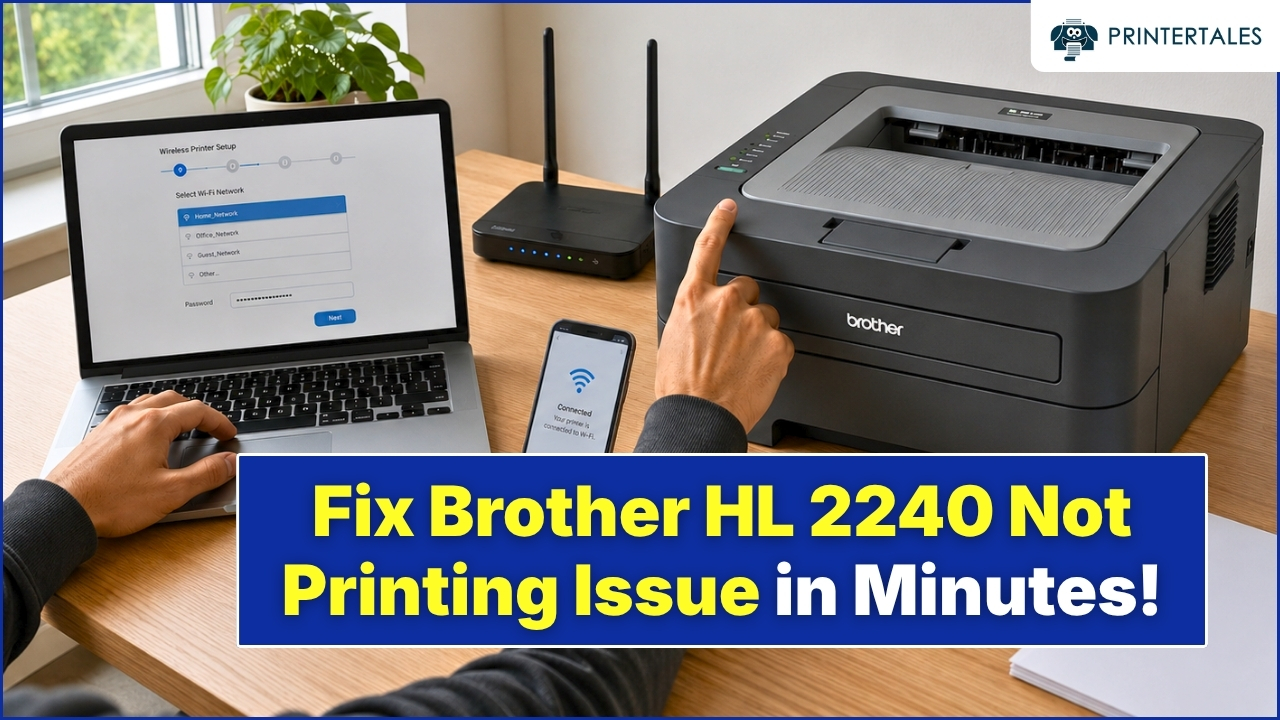
You hit print, the little Brother icon shows up in your taskbar, and then nothing happens. The document just sits there marked "Printing," every job you send after it piles up behind it, and clicking cancel doesn't do a thing.
This is one of the most common complaints we hear about Brother printers, and it's almost never the printer's fault. In most cases, the document itself is stuck in the print queue on your computer, not on the printer, which means the fix happens on your PC or Mac rather than at the machine. Below are the same steps we walk people through when they contact us, starting with the quickest fix and working up to the ones that solve it for good.
What Usually Causes a Stuck Print Queue
- One corrupted job is blocking the line. A single damaged or oversized file (a photo-heavy PDF is a common culprit) can freeze everything queued behind it.
- The Print Spooler service has stalled. This is the background Windows service that manages every print job on your computer. When it hangs, nothing moves, even if the printer itself is working fine.
- The Brother driver is outdated or conflicting. Old, duplicate, or mismatched drivers are a frequent cause of spooler crashes.
- The printer dropped its connection. If your Brother machine lost Wi-Fi or the USB cable came loose, Windows or macOS may keep queuing jobs to a printer that's no longer listening.
- The printer itself is paused. An empty paper tray, low ink, or an open cover will hold the current job and back up everything after it.
How to Clear a Stuck Brother Print Job on Windows
Step 1: Cancel the job from the print queue
- Open Settings > Bluetooth & devices > Printers & scanners (Windows 11) or Devices and Printers (Windows 10).
- Click your Brother printer, then select Open print queue.
- Click the stuck job and choose Cancel, or use Cancel all from the menu to clear everything at once.
- If Cancel All is grayed out, right-click the printer and choose Run as administrator, then try again.
This alone clears the jam for a lot of people. If the job disappears and then reappears, or won't cancel at all, move to Step 2.
Step 2: Restart the Print Spooler service
- Press Windows key + R, type
services.msc, and press Enter. - Scroll to Print Spooler, right-click it, and select Stop.
- Open File Explorer and go to
C:\Windows\System32\spool\PRINTERS. - Delete every file inside that folder (this clears the stuck jobs; don't delete the folder itself).
- Go back to Services, right-click Print Spooler again, and select Start.
Step 3: Power cycle the printer
Turn the Brother printer off, unplug it for about 60 seconds, then power it back on. This clears anything left in the printer's own memory and gives it a clean handshake with your computer the next time you print.
How to Clear a Stuck Brother Print Job on Mac
Step 1: Cancel the job in the print queue
- Click the Apple menu, then System Settings (or System Preferences on older macOS versions).
- Select Printers & Scanners, then choose your Brother printer.
- Click Open Print Queue, select the stuck job, and click the delete icon (the X or the minus button).
Step 2: Power cycle the printer, then restart your Mac
If the job won't delete, turn the printer off for about 30 seconds and turn it back on. If it's still stuck after that, restart your Mac itself. This restarts the printing client in the background and clears most connection-related jams.
Step 3: Reset the printing system (last resort)
Control-click your Brother printer in the Printers & Scanners list and choose Reset Printing System. This is the most effective fix for a job that refuses to leave the queue no matter what, but it removes every printer you've added and clears your saved print presets, so you'll need to add your Brother printer back afterward.
A Few Habits That Keep the Queue Clear
- Keep your Brother driver current. An outdated driver is one of the most common reasons the spooler crashes in the first place.
- Send one job at a time on large print runs. Queuing several photo-heavy files back to back is a common way to overload the spooler.
- Check paper and ink before you hit print, especially for anything time-sensitive. A paused printer holds every job sent to it.
- Restart the printer occasionally, not just when something breaks. A quick power cycle every so often clears small memory glitches before they turn into a stuck queue.