How to Find the IP Address on a Ricoh Printer (All Models)?
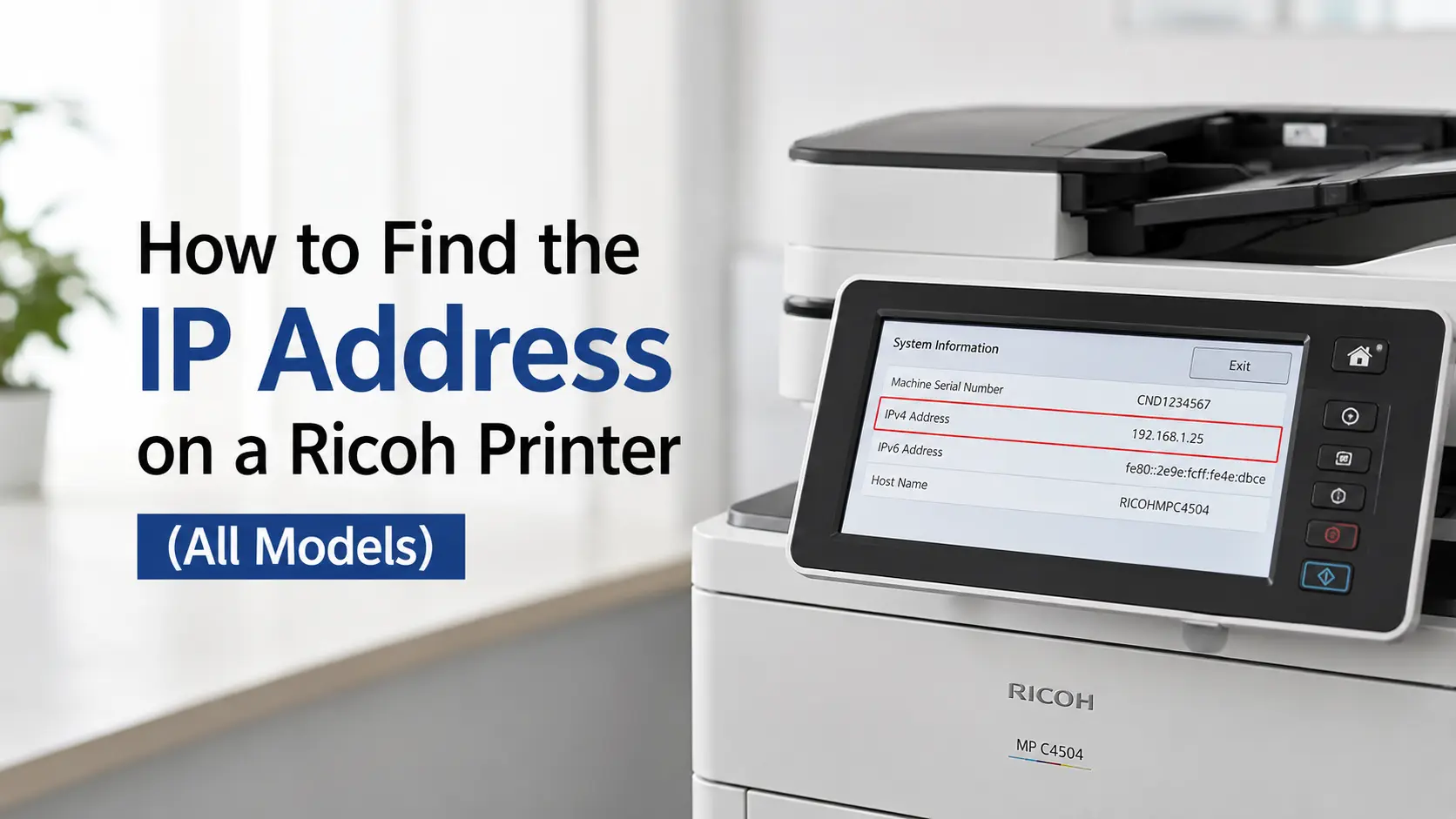
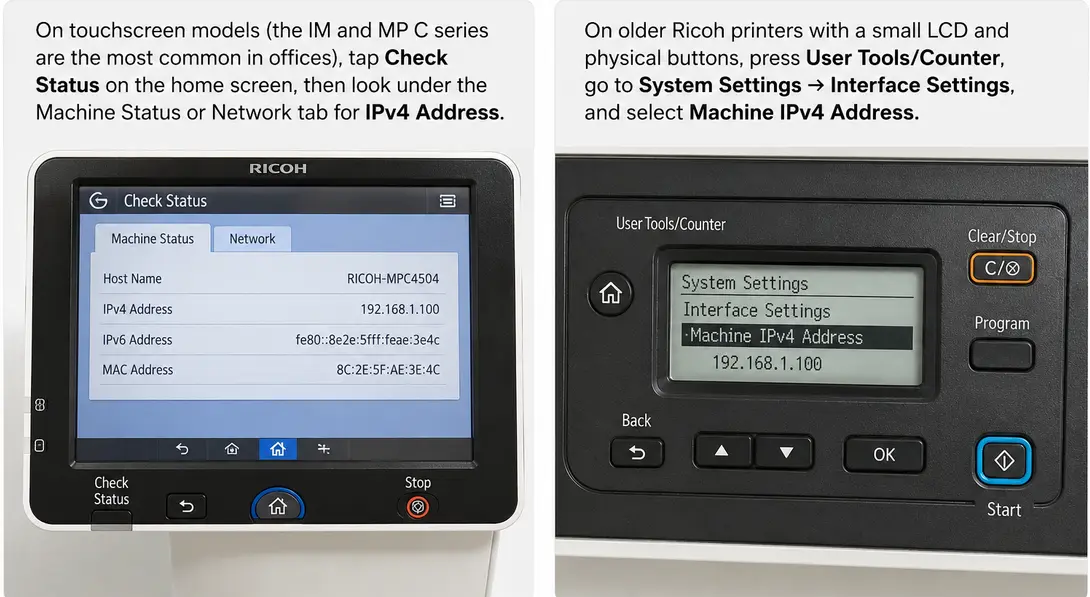
The fastest way to find your Ricoh's IP address is right on the machine itself. On touchscreen models (the IM and MP C series are the most common in offices), tap Check Status on the home screen, then look under the Machine Status or Network tab for IPv4 Address. On older Ricoh printers with a small LCD and physical buttons, press User Tools/Counter, go to System Settings → Interface Settings, and select Machine IPv4 Address.
If neither of those screens shows a usable number - or the printer displays something like 0.0.0.0 the printer isn't fully connected to the network yet, which is a different (and more common) problem than people expect. I'll cover that further down.
Every method below works whether you're trying to install a driver, open Web Image Monitor, add the printer in a new office, or just figure out why a previously-working Ricoh suddenly went offline.
Method 1: Check Status on the Touchscreen (Most Ricoh MFPs Since ~2016)
This is the quickest route on any Ricoh with a color touch panel — the IM C, MP C, and most current SP models.
Quick compatibility check: this method applies to popular office multifunction printers (MFPs) such as the Ricoh IM C2000, IM C3000, IM C4500, MP C3004, and MP C4503.
- Tap Check Status in the top-right corner of the home screen (on some firmware it's simply labeled Status).
- Select the Machine Status tab.
- Scroll to Network. The IPv4 Address is listed there, typically alongside the MAC address and gateway.
One thing worth knowing: some Ricoh firmware builds hide this behind a second tap — you tap the network icon inside Machine Status rather than seeing the address on the first screen. If you don't see "Network" as a section at all, your model likely routes it through User Tools instead (Method 2), which happens more often on units running slightly older firmware that hasn't been updated through Web Image Monitor.
Method 2: User Tools Menu (Older Ricoh Printers and Some MFPs)
For Ricoh printers without a full-color touchscreen, or ones where Check Status doesn't surface the network tab:
- Press User Tools/Counter.
- Select System Settings.
- Open the Interface Settings tab.
- Select Machine IPv4 Address.
If the printer is set to obtain an address automatically, you'll see the current DHCP-assigned IP here as read-only. If it's set to Specify (static), you'll see the address you or your network admin configured manually, along with the subnet mask and gateway on the same screen.
Method 3: Print a Configuration Page (Works on Every Ricoh Model)
This is the one method that works regardless of firmware version, panel type, or whether the touchscreen is acting up — and it's what I default to on any printer I haven't touched before, because I don't have to hunt through unfamiliar menus.
- Press the Menu or User Tools key.
- Navigate to List/Test Print (older models) or Printer Features → List/Test Print (some MFPs).
- Select Configuration Page and print it.
The printed page lists the IPv4 address, subnet mask, default gateway, DNS servers, and the MAC address in one place. It's genuinely the most reliable option if you're troubleshooting a printer that a previous IT person set up years ago and nobody documented — you get every network detail at once instead of tapping through five screens hoping the right one has what you need.
Method 4: Find the IP Address From a Windows PC
If the Ricoh is already installed as a printer on your computer, you don't need to walk over to it:
- Open Settings → Bluetooth & devices → Printers & scanners (or Devices and Printers on Windows 10/11 classic Control Panel).
- In the modern Settings app, left-click the Ricoh printer's name to expand it, then click Printer properties. (Right-clicking to get this menu only works in the older Control Panel view — the Settings app doesn't support it, which trips people up when they're following instructions written for an older Windows version.)
- Go to the Ports tab. The checked port usually shows the IP address directly, or you can click Configure Port to see it.
Caveat: this only tells you the IP address Windows thinks the printer has, which is the saved value from when the printer was installed. If the printer's real IP has changed since then (very common after a router reboot — see the DHCP section below), this number will be wrong, and that mismatch is exactly what causes a printer to show "Offline" out of nowhere.
Method 5: Find the IP Address From a Mac
- Open System Settings → Printers & Scanners.
- Select the Ricoh printer, then click the small (i) info icon or right-click and choose Options & Supplies.
- The IP address appears under the General tab, next to "Location" or "Address."
Same caveat as Windows applies: it's the last-known address stored in macOS, not necessarily the printer's current one.
Method 6: Check Your Router's Connected Devices List
If you can't get to the printer physically and it's not yet installed on any computer, log into your router's admin page (commonly 192.168.1.1 or 192.168.0.1) and look for Connected Devices, DHCP Client List, or Attached Devices. Ricoh printers usually identify themselves by manufacturer prefix in the device name (often starting with "RICOH" or the model number), which makes them easy to spot in a list of ten or twenty devices.
What to Do Once You Have the IP Address
Type http:// followed by the IP address directly into a web browser — for example, http://192.168.1.45. This opens Web Image Monitor, Ricoh's built-in web dashboard. From there you can check toner levels, print counters, and paper tray status, download drivers matched to your exact firmware version, and change network settings like DHCP vs. static IP without touching the physical panel at all. If the page won't load, the IP address you have is stale — go back to Method 1 or 3 and pull the current one directly from the machine.
Why the IP Address Keeps Changing (and How to Stop It)
This is the part most guides skip, and it's usually the actual root cause when someone says "I found the IP address but the printer still won't connect."
Most home and small-office routers use DHCP with a lease time, meaning your Ricoh's IP address isn't permanent — it's rented for a set period (often 24 hours to a few days depending on the router) and can be reassigned to a different number, especially after a power outage or router restart. When that happens, your computer's saved printer port still points to the old address, so the driver reports "offline" even though the printer itself is running fine.
Two ways to fix this permanently:
- DHCP reservation (recommended for most people): in your router's admin panel, reserve a fixed IP for the Ricoh's MAC address. The printer still uses DHCP, but the router always hands it the same number.
- Static IP on the printer: set it directly via User Tools → System Settings → Interface Settings → Machine IPv4 Address → Specify. This works but means you're responsible for avoiding conflicts if you ever add other devices manually, since nothing else on the network will know that address is taken.
For a single printer in a home office, DHCP reservation is the less error-prone option — it survives firmware updates and factory resets without you having to re-enter numbers.
Troubleshooting: Printer Shows No IP Address or 0.0.0.0
If Check Status or the config page shows 0.0.0.0, or the network field is simply blank, the printer hasn't received an address from the network at all — this isn't an "IP is hidden somewhere" problem, it's a connectivity problem. Work through these in order:
- Check the physical connection. For Ethernet, confirm the cable is seated at both ends and the port light on the printer is lit. For Wi-Fi models, confirm the wireless icon on the panel shows connected, not searching.
- Confirm DHCP is active on the printer. Under Interface Settings → Machine IPv4 Address, make sure it's set to Auto-Obtain rather than a stale static entry from a previous network.
- Restart the printer, not just the router. Ricoh MFPs sometimes hold onto a failed DHCP request until the network interface is reset.
- Confirm the effective protocol is active. Under Host Interface → Network → Effective Protocol, IPv4 needs to be set to Active — it's occasionally toggled off during a firmware update or a factory reset.
Related Guides
Why Is My Ricoh Printer Offline? [Top 4 Quick Fixes]
This is the most natural next click - the main article explains why a stale IP causes a printer to show "Offline," and this guide picks up exactly there with the fix once that's happened.
How to Download and Install Ricoh Printer Driver?
The main article tells readers they can pull drivers matched to their exact firmware from Web Image Monitor once they have the IP - this is the guide for readers who want the full install walkthrough rather than just the download link.
How to Fix Ricoh Printer WiFi Setup?
Directly relevant to the "0.0.0.0 / no IP address" troubleshooting section - if the wireless connection itself is the problem rather than a stale DHCP lease, this is the deeper guide for that specific case.
How to Factory Reset Ricoh Printer?
A good "what to do once you have the IP" companion - its first step is literally typing the machine's IP address into a browser to reach the admin login, so it presumes the reader already did what this article teaches.
Frequently Asked Questions
Does every Ricoh printer have the same menu path for finding the IP address?
No, touchscreen MFPs use Check Status, while button-driven models use User Tools → System Settings. The config page printout (Method 3) is the one option that works the same way across nearly every model Ricoh has made in the last 15 years.
Can I find my Ricoh's IP address without walking up to the printer?
Yes, if it's already installed on a Windows or Mac computer (Methods 4–5) or visible in your router's connected devices list (Method 6). Just be aware these can show outdated addresses if the printer's IP has changed since installation.
What's the difference between the printer's IP address and its MAC address?
The MAC address is a fixed identifier burned into the network hardware and never changes. The IP address is a network location that can change, especially under DHCP. Both appear on the configuration page, which is why printing one is useful even if you only need the IP - you get a permanent reference point (the MAC) to match against your router's device list.
Why does Web Image Monitor say the page can't be reached even though I typed the right IP?
Either the IP has already changed again since you last checked it, or the printer and your computer are on different subnets or VLANs and simply can't see each other - worth confirming with whoever manages the network if you're in an office setting.